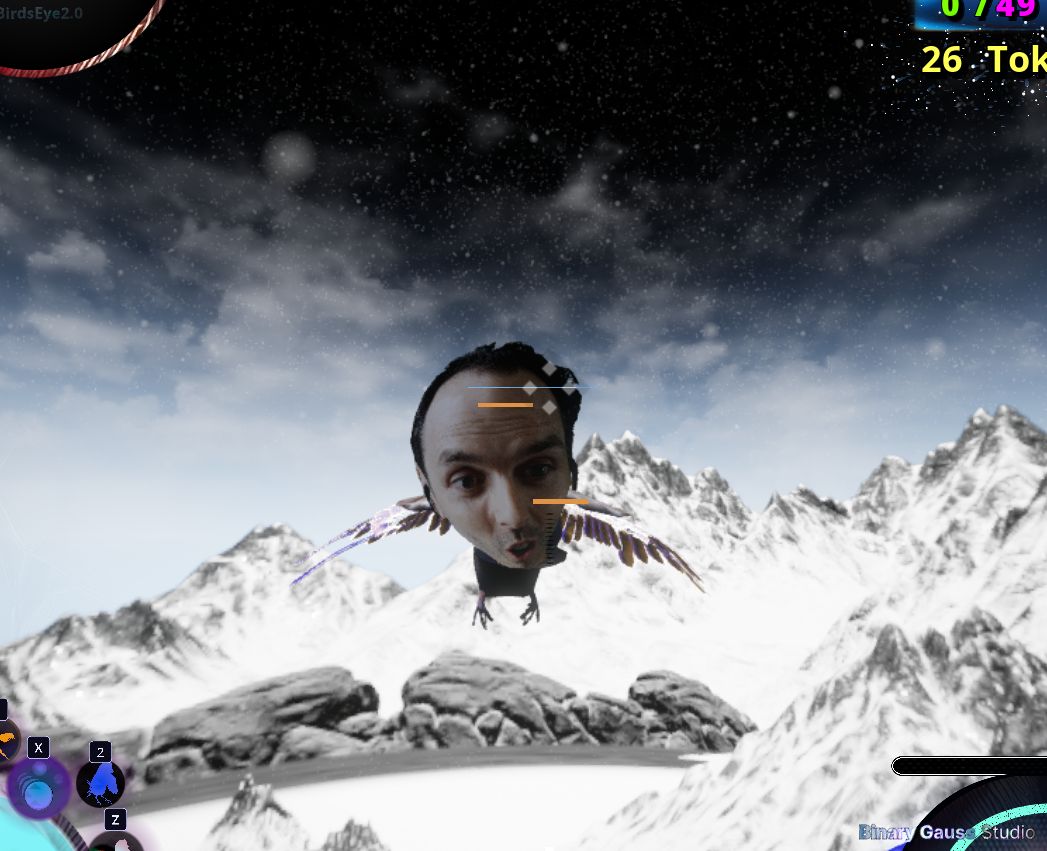
See the YouTube version
Creating necessary assets, Media Player, Media Texture, and a Material
From the content browser
➕ create a
Media Playerasset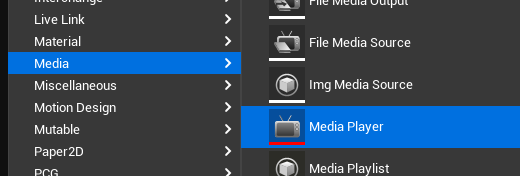
In the prompt that follows, check
Video output MediaTexture asset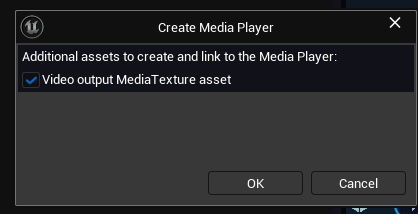
Name the
Media Playerasset, and notice, 2 assets are created, theMedia Playerand an associatedMedia Texture➕ create a material
Now that all our assets are created, lets open them up.
Setup the Media Player Asset
open the
Media Playerassetclick the tiny folder icon beside the empty Url input text box, and select
Video->My Camera Feed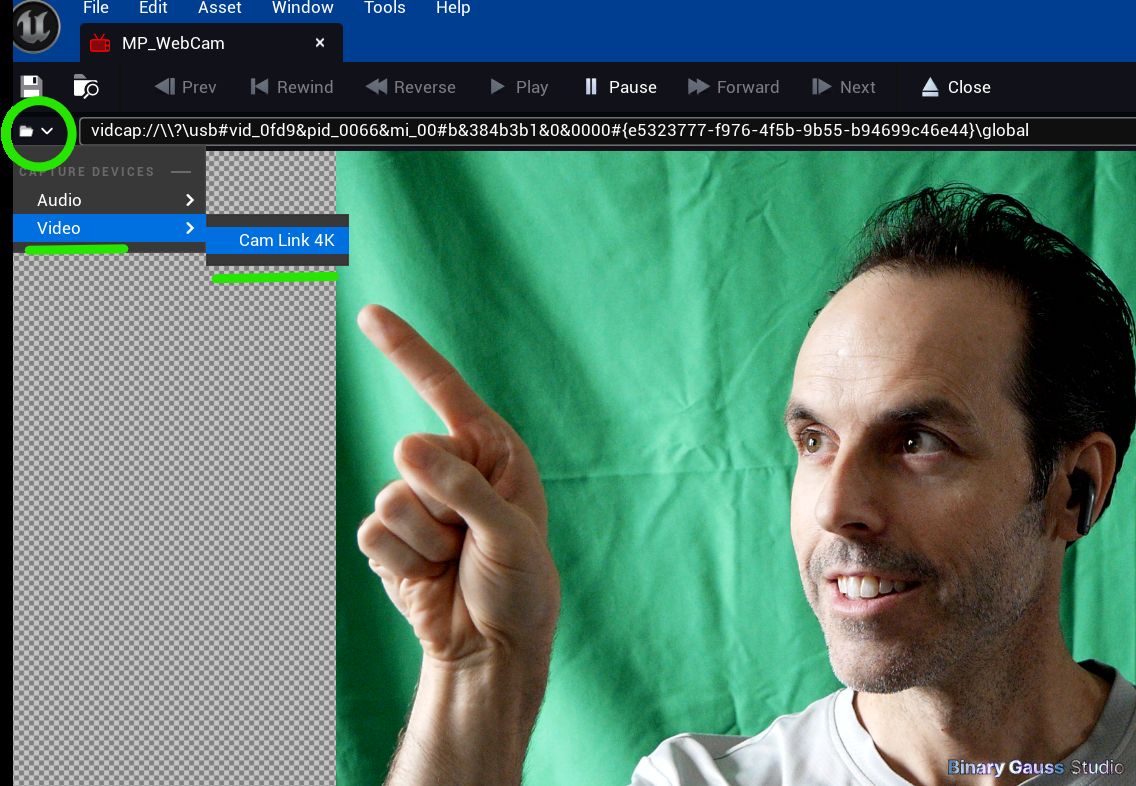
notice, now the camera feed is being projected through the
Media Playerviewport
Setup the Material, and Chroma Key node
open the material
setup the material graph with something similar to
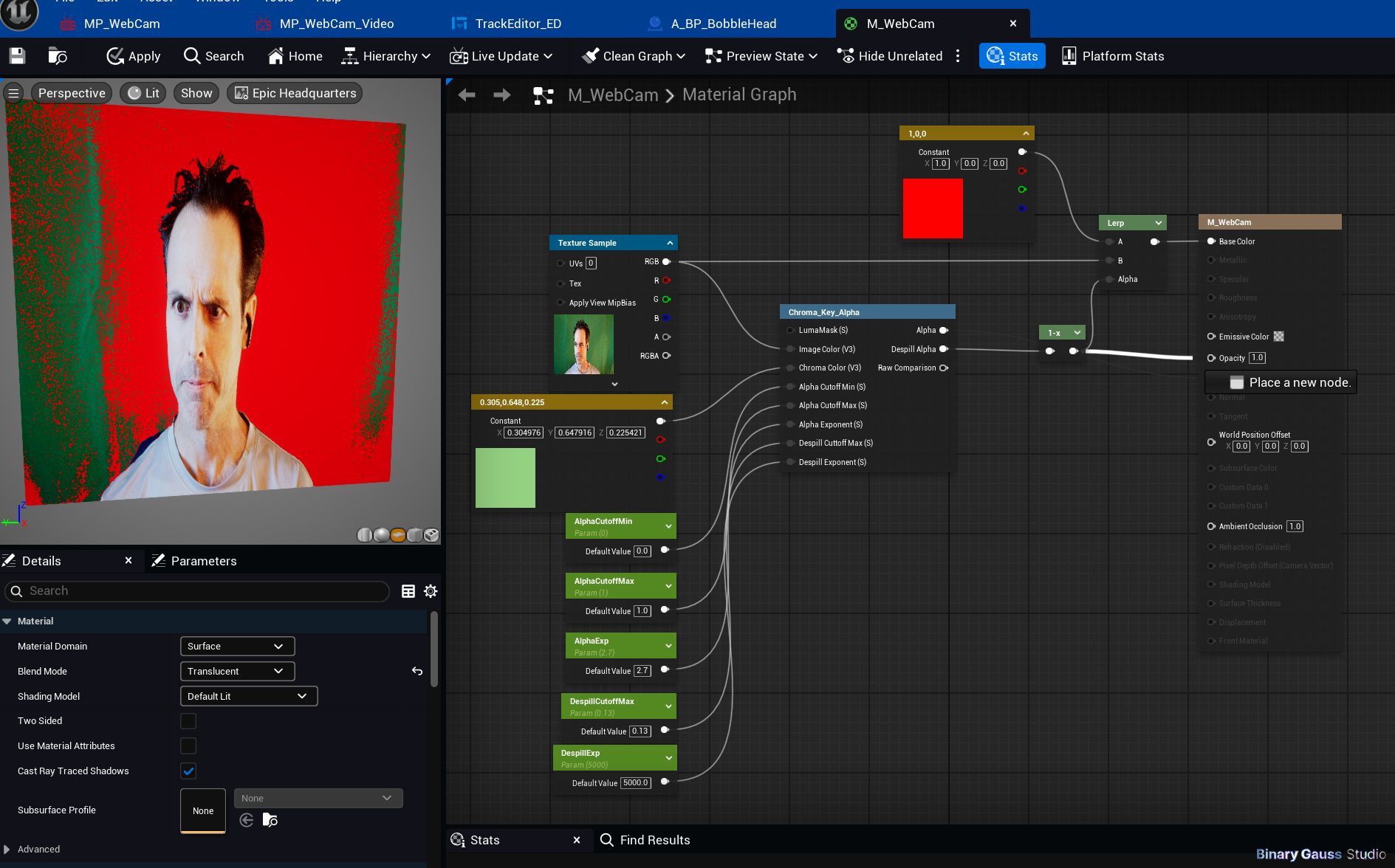
the important bits in the material are the
Chroma_Key_Alphanode, and theTexture Samplenodethe
Texture Samplenode should reference theMedia Textureasset created earlierwire up and parameterize most of the inputs into the
Chroma_Key_Alphanodethrow in a
one minusfollowing theChroma_Key_Alphanodeperhaps,
Linear Interpolate/Lerpfollowing theone minuswith some debug color, into theBase Colormaterial output pin, this will allow you to more easily see where the green screen is / and isn’t being masked fully
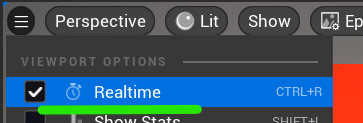
perhaps, enable the material ‘realtime’ setting to more easily get feedback
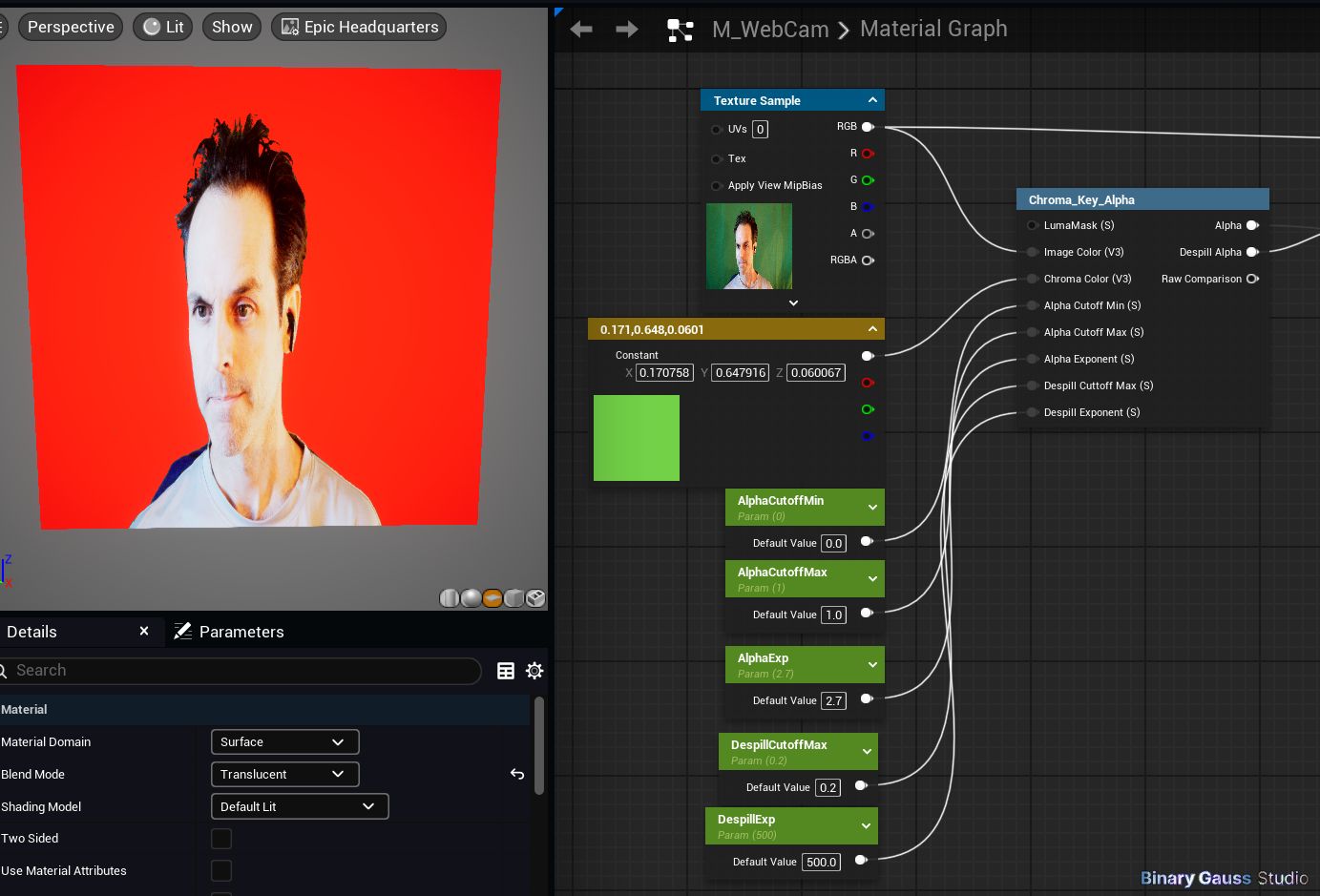
now, mess around with the settings until you get the red value just right
and now, alas connect the opacity from the
one minusand the red should just disappear

if you experience an overly contrasted image, where the subject appears extremely bright
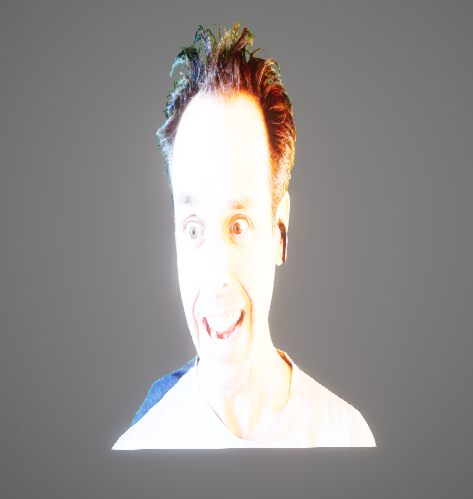
Do not fret, too much. It may simply be that the default material exposure is setup with Auto Exposure causing overly exposed image (if the resulting output image is mostly white to begin with).
Now to resolve the issue,
Click
LitFrom the
Exposuresectiondisable
Autoand set the
EV100property to-1
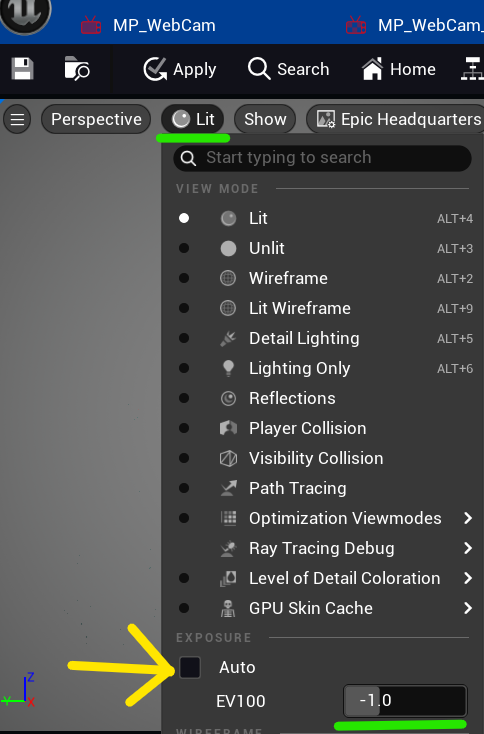
And some result
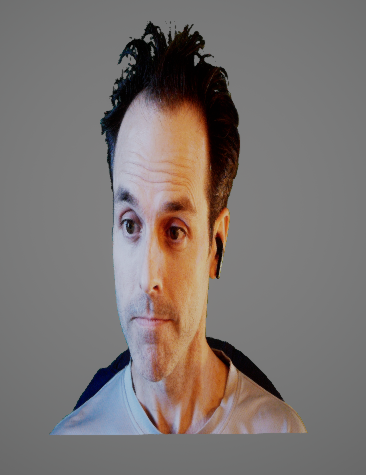
May look a little better and normally exposed.
Reconnecting the feed when launching
Now, this is great and you can use this material in the editor and you should see your subject, masked from the background to where ever you apply the texture.
But, even while in the editor every time you launch PIE, you must set the Media Player’s feed Url again, and again to reconnect the feed.
Querying for capture devices in Native C++
If you plan to use Blueprints for this, you do not need to do anything from this Native C++ section.
In order to achieve this in C++ we must use the MediaAssets library.
Include MediaAssets Framework as a Dependency
In your MyGame.Build.cs, add an entry of MediaAssets to PrivateDependencyModuleNames.
Setup a UI that lists connected devices
The important bit here is pretty straight forward. The actual UI presentation I will leave up to you.
Here, i demonstrate how I was able to populate my game setting with connected camera devices.
TArray<FMediaCaptureDevice> Devices;
UMediaBlueprintFunctionLibrary::EnumerateVideoCaptureDevices(Devices);
for (const auto& Device : Devices)
{
  Setting->AddDynamicOption(Device.Url, Device.DisplayName);
}
When the setting changes, the value of this setting (or Device.Url) is stored in SharedSettings. It may be you want to store the value in LocalSettings instead since this value doesn’t need to be replicated across user’s devices.
Querying for capture devices in Blueprints
To create a UI in Blueprints, you may use the EnumerateVideoCaptureDevices blueprint node.
The incomplete example below just demonstrates querying the API, but does not setup UI. I will leave that to you to create.
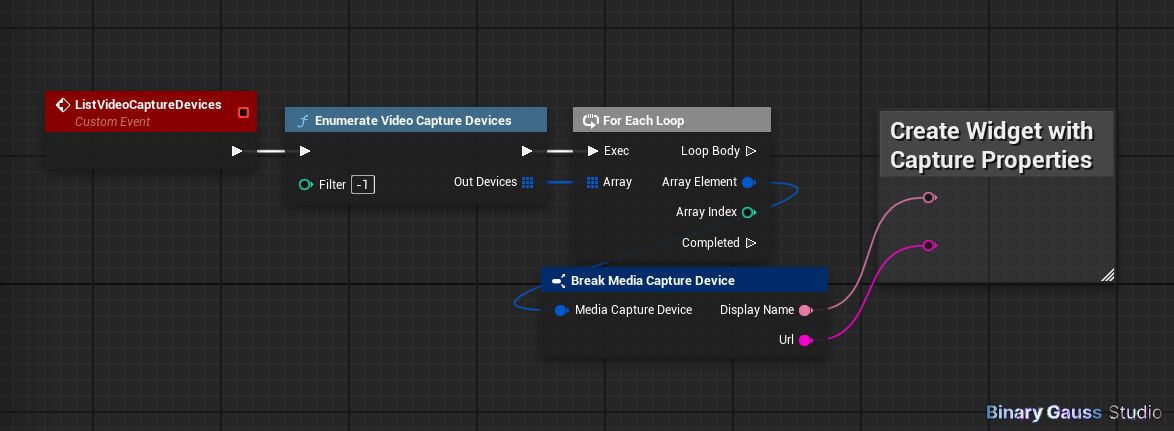
There is also a EnumerateWebcamCaptureDevices that may be useful to you. However, I have not used this node and am not sure how it really differs from EnumerateVideoCaptureDevices.
Using Media Player OpenUrl and Play APIs
Now, when I launch my game and setup an actor that wants to use the Material that uses the live camera feed, I must do a couple things.
There are many ways in which you can achieve this, and I will capture the important bits.
setup an actor blueprint
add a variable named
MediaPlayerof typeMediaPlayerset the variable to reference the
MediaPlayerasset created earlier
we must instruct the
MediaPlayertoOpenUrlwith the capture device URL that we stored earlierand finally, instruct the
MediaPlayertoPlay
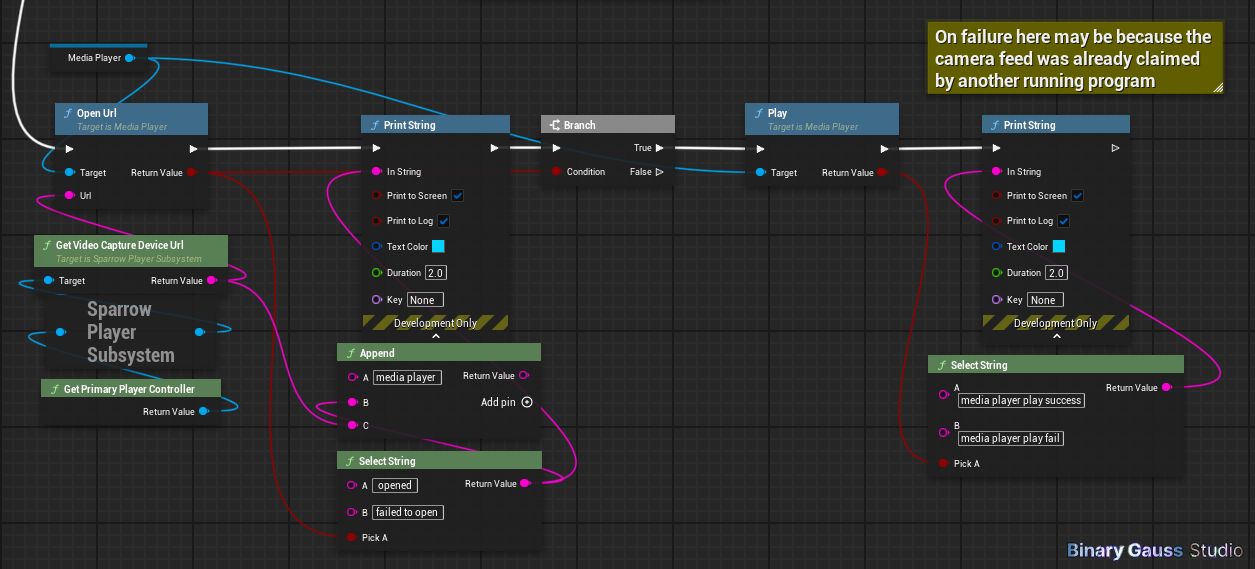
Caution
If your camera is offline, then
OpenUrlmay failIf your feed is already being used by another program, then instructing the
MediaPlayertoPlaymay fail
If your camera is setup correctly, this should be enough to activate the feed, and your material should now be updating with camera’s feed